How to Clean and Repair Your Registry?

Monday, October 11, 2010
When your PC is slow, internet pages lag, and system performance is just not up to par, there are many ways to avoid costly repair bills and perform a do it yourself fix.

There are several very good built in and downloadable tools for system optimization, registry clean and repair:
  • CCleaner is a tool that frees up disk space by removing unused files. It cleans temporary files, history, and cookies, etc. from common internet browsers. Additionally, CCleaner cleans out your recycle bin, Windows temp files, removes broken and unused registry entries, and other common problems that slow our computers down. You can also use CCleaner to uninstall unwanted programs from Windows and Startup.
  • CCleaner is a free tool. Once you get to the website, simply Download CCleaner. They do accept Paypal donations. Donations are not a requirement to receive the software download, but I do recommend donating a dollar or two. This software really does take care of many problems and it's always nice to show your appreciation.
  • Once the software is downloaded to your system, you're ready to go. The first tab is 'Cleaner.' Using this tab you'll be able to optimize your system by cleaning Windows components and application components. HINT!! I really get angry when I lose my Windows saved passwords and browsing history. Temp files can go, and cookies can go, but I've got to have my passwords! Look carefully at the boxes which are checked. Uncheck ANY that include information you'd like to keep on your system.
  • The next tab is 'Registry'. Scan for issues and if you've ignored your computer for a while, you're likely to find tons of broken shortcuts, registry errors and much more! You have the option to backup the registry before cleaning, and I highly recommend checking YES to backup the registry. I also recommend running this tool several times until it comes back clean. Once it fixes numerous registry errors the first go around, it's likely to pick up more. I had to run mine about 6 times when I first downloaded CCleaner.
  • The third tab is 'Tools.' This gives you the option to Uninstall unwanted programs from your system and your startup file. Only uninstall programs if you know exactly what they are used for and you're sure you don't want them. Uninstalling programs can sometimes cause you big headaches in the long run.
  • The fourth tab is 'Options.' This tab is for advanced customizations. Just leave it at the default options unless you know what to look for.
  • CCleaner provides regular software updates. Usually you'll receive automatic notification of updates to install, but if you're unsure, just click 'Check for updates...' Also, it's worthy to note that CCleaner does not include any viruses, spyware or adware in its download. This is a very handy program and does a wonderful job cleaning junk from your computer and optimizing your registry.
Source: ehow.com

For more Details: PC Optimization

How To Fix Google Chrome Crash Problem ?

Thursday, October 7, 2010

To fix Google Chroma Crash problem all you need to do is:

  • Click on the Google Chrome shortcut

  • In Target field add “no-sandbox” or “–in-process-plugins”

  • Click Apply and Try starting Chrome again..

If this is not working in your case, then may its an issue with one of the windows file named as “winhttp.dll”. Then try this

  • Click on the Google Chrome shortcut

  • In Target field add “new-http”

  • Click Apply and Try starting Chrome again..


How to Adjust Registry Files XP Pro Internet Speed

Friday, September 24, 2010

While Windows XP Pro does a good job of approximating the appropriate values to keep your internet speed optimized, there is always room for improvement based on the particulars of your internet setup. Through the use of a free downloadable internet optimization wizard, you can easily tweak the registry of Windows to improve your overall Internet speed and reliability. The process should take no longer than 10 to 20 minutes.

  • Download and install an internet optimization program such as TweakMaster or the TCP Optimizer. These are programs which can automatically test and tweak the registry of your Windows XP Pro setup to improve performance.
  • Open TweakMaster. From the main screen you should see a number of different options. Select the option for the "Connection Optimization Wizard."
  • Input the type of Internet connection that you are using, whether it is a modem, DSL, cable or another type of high speed internet.
  • Enter in the remaining required information, including your overall connection speed and your network setup to complete the process. TweakMaster will then test your internet connection and change your registry, optimizing your settings according to the results.
Source: ehow.com

How to Optimize Performance for Disk Drives?

Friday, September 17, 2010
Follow the given Instructions to learn how to improve performance of your hard disk and removable disks.
  • Right-click My Computer.
  • Click Properties.
  • Click the Performance tab.
  • Click File System.
  • Click the Hard Disk tab.
  • Drag the "Read-ahead optimization" slider all the way to the right.
  • Click the CD-ROM tab.
  • Drag the "Supplemental cache size" slider all the way to the right.
  • Click the down arrow to the right of "Optimize access pattern," and select "Quad-speed or higher."
  • Click the Removable Disk tab.
  • Click to check the box to the left of "Enable write-behind caching on all removable disk drives" if it isn't already checked.
  • Click OK.
  • Click Close.
Source: ehow.com

For More Details: PC Optimization

Fix an invalid page fault Error

Wednesday, September 8, 2010
An invalid page fault is caused when the operating system or a software program attempts to store or call a segment or block of the computer's memory that does not exist. Because of the invalid call, the program will generate an invalid page fault error message and terminate the program or process to prevent additional issues. this post provides tech support tips to fix invalid page fault issue.

Cause
There are several reasons a computer may generate an Invalid Page fault error. Below are few of those possibilities.

1. Incompatibility or issue with the software programs.
2. Issues with the computer memory.

Troubleshooting Tips

Remove all TSRs

Disable or unload any TSRs or programs currently running before running the program causing the GPF.

Additional information on how to end task a TSR can be found on document CHTSR.

Delete all program temporary files

Delete all temporary files that may still be residing on the hard disk drive from currently or previously running programs.

Additional information on how to remove temporary file can found on document CH000225.

Run Scandisk / Defrag

Attempt to run scandisk / defrag on the hard disk drive as it could be possible your hard disk drive may have an issue causing the swap file or data files to become corrupt or invalid

Additional information on scandisk can be found on our scandisk page.

Additional information on defrag can be found on our defrag page.

Update software or check for software patches

If you are experiencing invalid page faults in only one program, verify that the software program is compatible with the operating system you are running the program within. Also verify with the manufacturer or vendor of the software program that there are no available patches or updates for the program that may help or resolve your issue.

Recently installed software / hardware

If you have recently installed new software or hardware, attempt to uninstall or reinstall that software / hardware to verify it is not causing your issue.

Bad Memory, invalid bits or physically bad memory

It is possible that bad memory can cause Illegal Operations. If you have recently added memory to the computer it is recommended that it first be removed to verify that you are not experiencing conflictions with the recently installed memory.

If no memory has been recently added to the computer it is recommended you follow all other steps found on this page before replacing the memory within the computer.

Security in Microsoft Windows 7

Tuesday, August 24, 2010
Windows 7 security is the top most dominating feature, which has raised the global demand of its installation. There are plenty of new features along with some good modification in the previous features and the operating system offers enhanced security for both online and offline activities.

Microsoft has blessed its new operating systemwith some innovative features, such as DirectAccess, Biometric Security, Applocker, Windows Filtering Platform (WFP). Besides, there has been a considerable improvement in previous features, like Windows Secuirty Center of Vista has been presented in a more effective way as Action Center, BitLocker has been revised to perform advanced job.

With the modified and innovative features, like BitLocker, you can share your data with your colleague without any worry, DirectAccess helps to share your office network in a secure manner, when you are on move. With Action Center, you can troubleshoot the problems arising with software and hardware conflicts in a much better way. BitLocker feature, which is useful for encrypting your data files, is not available with the Windows 7 Home Premium Edition. It has been observed that the files encrypted are hard to recover, in case of any data loss.

Windows 7 Firewall has been modified to a great extent, now it can filter both inbound and outbound traffic of your computer's network. Windows Defender can be customized well, under the Advanced Setting option, available in Control Panel, for quick, complete and partial scanning of your computer's memory. While in Vista, you were permitted for doing only basic setting. In addition to this, you can also customize it as per your need to scan public network, home network or work network. Moreover, you can perform scanning of each one at the same time, it was also restricted in earlier Vista, where you can do scanning of one network at a time. Next improvement has been done with the restriction from User Account Control, which doesn't allow others to perform any setting change over your PC in your absence.

With effective Windows Firewall, Windows Defender and software, you can keep your computer safe from viruses and ensure good performance. Adding on, you can remain free from frequent computer's issues like sluggish performance, slow startup, blue-screen error and computer's freezing. You can keep your Windows registry in sound condition, which is the God father of your computer.

Understanding the global threat about cyber-crime and other malilcious softwre, Microsoft has done a complete overhauling in the security feature of Windows 7. With the new operating system, you can share your computer's data and peripheral devices like, printers and scanners in a much secured manner.

Advantages and disadvantages are always associated with any development. There are some limitations in Windows 7 security, like Windows Firewall has been observed to be getting disabled on attack of some sophisticated viruses. Windows 7 still using the same encrypt arithmetic as the previous versions of Windows. That means that if you need to reset Windows 7 password, you can just use the similar methods like Windows Vista or XP. Sometimes you even have to use some Windows 7 password recovery software that is used for Windows 7 password reset. Further, it also raises issues while installing some new programs or making some download from any website. Windows Defender needs to be configured well after each and every new installation work you perform on your computer.

For attaining better security over your Windows 7 installed computer, you should keep your Windows update enabled, when you are online. Status of Windows Defender should be monitored on regular basis. In addition, your computer must have a compatible antivirus program.

Windows 7 Reviews

Monday, August 9, 2010
windows 7 in depth reviewAfter the successful launch of Windows 7 on 22nd Oct'2009 a continuous review work is going on to show the mutual induction. The significant area where we can do the study are Appearnace, performance, Version restriction and so on.

Windows 7 review of appearance
As most user are firstly attracted by mere look, so I am too. If we discuss on the ground of Appearance then we can't left behind and miss the Aero feature which has created a buzz in the IT industry. The Windows 7 with its Aero Glass theme make the windows translucent and textured boarders. This provides very sloppy look to Windows 7. The variation in choosing color is quite good. It has been an inbuilt feature under Control panel. Windows 7 has new style of applet that loads up within the Control Panel window rather than in a pop-up dialog box. Enhancements to the Aero User Interface (UI) helps you organize your open windows and other desktop components for easier and faster access. The Aero feature has triple function as:

* Aero Peek - hovering over a taskbar icon shows thumbnail of that program. Hovering over the thumbnail shows a preview of that program in full view. Aero Peek also refers to the "Show desktop" button to the far right of the new taskbar.
* Aero Shake -You may have opened several Windows but at a time you need single to work. You can use this feature to minimize all other windows by just dragging the single window back and forth. Shaking it again brings other windows back.
* Aero Snap - Clicking and dragging a window to the right or left side of the desktop causes the window to fill the respective half of the screen. Snapping a window to the top of the desktop maximizes it. Resizing a window to touch the top or bottom edge of the screen maximizes the window to full height, whilst retaining its width; these windows will then slide horizontally if moved by the title bar, or can be pulled off, which returns the window to its original height.

Windows 7 review of installation process
Installation is the first stage from where the testing begins. Though not of vital importance to consider on that basis because we are don't need this procedure again and again. But still a initial requirement.

The process show a cutting edge experinence over the earlier version. Even more contributive point is that new installer can load drivers from sources other than floppy disks. CDs, USB keys, and hard drives can all be used as a source of drivers. Windows 7 can be installed from USB key or hard disk, which makes for much faster installs, not to mention much less frustration when trying to customize the process.

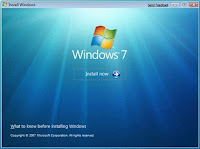
Windows 7 installer has cut down the number of questions being asked during installation making your work easier. Though for some it may seems to be non-interactive. Installing Windows 7 is a child play. You just need to insert the DVDs into the DVD drive and sit idle. When the setup emerges it will ask your country and language. Select from the drop down menu. Now the installation Wizard will start. The install now options will leads to the advanced install options. For repairing a corrupt installation the 'Repair your computer' button located at the bottom-left can be used. For fresh installs just click the Install now button. Go on following the screen prompts. Accep the license agreement after reading it.

Windows 7 review of Performance
A wide range of Test has been performed to check the performance of Windows 7. Let's talk about WorldBench 6 mark Test. Here the comparative analysis was performed on 6 crieteria which are CPU properties, 2D graphics analysis and GUI feature, 3D graphics test to judge simple to complex DirectX 3D graphics and animations, Disk tests Reading, writing and seeking within disk files and CD / DVD test Test.

The result showed Windows 7 on the top. Though there was a marginal difference.Windows 7 Ultimate 64-bit earned a WorldBench 6 mark of 144, edging out Windows Vista Ultimate 64-bit, which scored 139. Here Windows 7 was roughly 3.6 percent faster than Windows Vista. The test was performed on a system with configuration 2.66GHz Intel Core i7 processor.

Measuring the same parameter on HP Pavilion a6710t desktop (with a 2.6GHz Pentium Dual Core E5300 CPU), with both the 32-bit and 64-bit editions of Windows Vista Ultimate and Windows 7 Ultimate also reveals the same story. Running the 32-bit versions of Vista and Windows 7, the a6710t saw its WorldBench 6 score increase only a little, from 104 on the former to 106 on the latter.

Similar incremental performance improvements on portable test PCs as well. With the 32-bit versions of Vista Home Premium and Windows 7 Home Premium, our Gateway T-6815 notebook went from a WorldBench 6 score of 58 on the older OS to a result of 64 on the newer one. Our Lenovo IdeaPad Y530 laptop's WorldBench 6 score improved by only one point with Windows 7 in our comparison of 32-bit Ultimate editions (going from 83 to 84); when we tested the 64-bit editions of the two OSs, we again saw a modest boost, with the Y530's score increasing from 79 to 83.

Windows 7 review of versions
Windows 7 brings a version for every PC. Hence resolving the dilemma in chosing for the correct version along with good offers to allure the consumer of all range.

From biginner to proficient these are: Starter, Home Basic, Home Premium, Professional, Enterprise, and Ultimate. Though on real practice only three version are significant. Starter Edition is worthless; it's crippled (it omits most of the user-visible features that make Vista and Windows 7 worthwhile). Its only purpose is to allow Microsoft to have a dirt-cheap OS to offer to netbook makers as an alternative to Linux. Home Basic is restricted to emerging markets; though less limited than Starter edition, it too lacks most of the features that make Windows 7 attractive to consumers. Enterprise and Ultimate are the same on anatomical ground they differ a little bit in licensing context. Enterprise is for volume license customers, while Ultimate is available through retail and OEM channels.