Optimize Windows 7 Computer For Peak Performance

Thursday, June 24, 2010

Our personal computers are like fine automobiles—they need preventive maintenance to run efficiently and to avoid major breakdowns.

The following tips can help improve your computer's performance for all versions of Windows 7 operating system:-

Clean up disk errors

Run once a week

Whenever a program crashes or you experience some power outage, your computer may create errors on its hard disk. Over time, the errors can slow your computer. Luckily, the Windows operating system includes a Disk Check program to check and clean any errors on your computer and to help keep it running smoothly.

To run Disk Check in Windows 7 OS:

  1. Click the Start button Start icon, and then click Computer.

  2. Right-click the hard disk drive that you want to check, and then click Properties.

  3. Click the Tools tab, and then, under Error-checking, click Check now.

    To automatically repair problems with files and folders that the scan detects, select Automatically fix file system errors. Otherwise, the disk check will simply report problems but not fix them.

    To perform a thorough disk check, select Scan for and attempt recovery of bad sectors. This scan attempts to find and repair physical errors on the hard disk itself, and it can take much longer to complete.

    To check for both file errors and physical errors, select both Automatically fix file system errors and Scan for and attempt recovery of bad sectors.

  4. Click Start.

Depending upon the size of your hard disk, this may take several minutes. For best results, don't use your computer for any other tasks while it's checking for errors.

Note: If you select Automatically fix file system errors for a disk that is in use, you'll be prompted to reschedule the disk check for the next time you restart your computer.

To run Disk Cleanup Windows 7:

  1. In the Start menu, click All Programs, click Accessories, click System Tools, and then click Disk Cleanup. Disk Cleanup will automatically begin to scan your disk for files you can delete.

    Note: If the Disk Cleanup: Drive Selection dialog box appears, select the hard disk drive that you want to clean up, and then click OK.

  2. Click the Disk Cleanup tab, and then select the check boxes for the files you want to delete.

  3. When you finish selecting the files you want to delete, click OK, and then, to confirm the operation, click Delete files. Disk Cleanup then removes all unnecessary files from your computer.

The More Options tab is available when you choose to clean files from all users on the computer.

Rearrange your data

Run once a month

Don't be shocked, but your computer can get sloppy. It often breaks files side by side to increase the speed of access and retrieval. However, as files are updated, your computer saves these updates on the largest space available on the hard drive, often found far away from the other adjacent sectors of the file.

The result: a fragmented file. Fragmented files cause slower performance. This is because your computer must now search for all of the file's parts. In other words, your computer knows where all the pieces are, but putting them back together in the correct order—when you need them—can slow your computer down.

Windows includes a Disk Defragmenter program to piece all your files back together again (if only Humpty Dumpty had been so lucky) and make them available to open more quickly.

To run the Disk Defragmenter:

  1. In the Start menu, click My Computer.

  2. In the My Computer dialog box, right-click the drive you wish to check for errors (for most of us this is the C: drive, unless you have multiple drives on your computer), and then click Properties.

  3. In the Properties dialog box, click the Tools tab, and then in the Defragmentation section, click Defragment Now…

  4. In the Disk Defragmenter dialog box, select the Volume (most likely your Local Disk C:) at the top of the screen, and then click Analyze (disk).

  5. After analyzing your computer, the Disk Defragmenter displays a message stating whether you should defragment your computer. Press Defragment (disk) to clean up your computer if necessary. The Disk Defragmenter will reorganize files by placing them together and sorting them by program and size, as shown here.

Optimize Windows 7 Computer For Peak erformance

How To Disable Useless Services To Optimize Your PC ?

Monday, June 14, 2010
Right-click My Computer and select Properties


Switch to Advanced tab, and click the first (under Performance subsection) Settings button.
Performance Options window will open.
Select Adjust For Best Performance option, and click OK button.


Click Error Reporting button on the bottom, and turn off error reporting: uncheck Windows operating system and Programs boxes, and switching to Disable error reporting option. Click OK button.


Now switch to Remote tab, and click Advanced button under Remote Assistance subsection.


Uncheck Allow this computer to be controlled remotely, and click OK button. Uncheck Allow Remote Assistance invitations to be sent from this computer. Uncheck Allow users to be connected remotely to this computer.

Switch to Automatic Updates tab, and check Keep my computer up to date option (Pic.13).

Click OK button. Restart computer.


Note 3: Set it to update at a time your computer will be turned on. This will ensure that your computer will always be up-to-date with the latest worm/security patches.


Right-click My Computer and select Manage.

Computer Management window will open .

Maximize Computer Management window

Click plus sign next to Services and Applications, click Services, and switch to Standard tab on the right .


Change Startup Type for Alerter service by double-clicking Alerter, selecting Disabled from Startup type dropdown box, and clicking OK button.


Now disable the following services using the same technique:

Automatic Updates

Background Intelligent Transfer Service

ClipBook

Computer Browser (if you have a standalone pc – no network)

Error Reporting Service

Fast User Switching Compatibility

Help and Support (switch to Manual)

Indexing Service

Messenger

NetMeeting Remote Desktop Sharing

Performance Logs and Alerts

QoS RSVP

Remote Desktop Help Session Manager

Remote Registry

Server (if you have a standalone pc – no network)

Telnet

Themes

Upload Manager

WebClient

Wireless Zero Configuration (don’t disable if using wireless network/Internet connection)

Close Computer Management window.

Restart computer.

Browser Comparison

Thursday, June 10, 2010
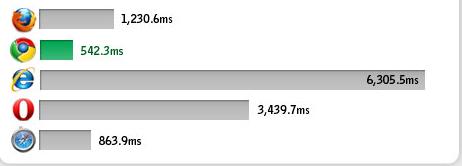
Browser Cache Performance
Total page load times for Yahoo.com with primed caches were measured to see how well browser perform when you have visited a website already. The same variable latency difference may be relevant here with calculating load time.


CPU Usage (Under Stress)
CPU usage reveals how much resources a browser needs: resource hobs show higher CPU utilization. Windows Resource Monitor was used to obtain average CPU occupation (%) while SunSpider was running to simulate activity.


CSS Rendering Speed
Browser with fast CSS rendering speed have faster page response time. The nontroppo.org CSS Rendering Benchmark was used to measure the onLoad duration for complete table-to-div conversion.


DOM Selection Speed
The faster a browser can select elements in a web page, the more responsive it is on asynchronous page updates (which most Web 2.0 apps hevily rely on). SlickSpeed was used to see how fast jQuery selects elements.


JavaScript Speed:-
Fast JavaScript execution times means that Ajax-heavy sites like Digg and webapps like Gmail will be more responsive to user action. To test JavaScript function execution speeds, SunSpider JavaScript Benchmark was used.


Page Load Time
The total time it takes to load Yahoo.com's front page was measured using Numion Stopwatch. Note that due to latency difference that occur with variable site traffic and server load, caution should be used when interpreting the results.


Overall Performance
Based on the result, the relative rating of each web browser is displayed below.


Additional Info


source:-

PC Optimization Tips

Tuesday, May 18, 2010
Since you work and do a lot of browsing on the Internet, the first thing you need to learn is computer optimization techniques. It is much better that you take a little extra effort to look after your computer regularly, rather than have it freeze, lock up, or crash when you lose everything on it, at which time you'll have to pay out a lot to have it fixed. Not to mention you have now lost all of the information, or data, you were working on. Follow these computer optimization tips and you will be much safer.

1. Set your anti-virus software checker to update itself automatically. This way, it is always updated with the latest protection.

2. Perform a scan of your computer daily when you finish working on it.

3. If you download any files through email or just from browsing the internet, scan this item before you open it with your anti-virus software.

4. Use your registry repair software to scan your computer once a week.

5. Use your adware/spyware software once a week. You can set this up to run automatically, which will help you keep this updated.

6. Never open any attachments in emails from people you do not know. Especially if the file is a .exe file. This is an executable file, and can launch all sorts of viruses.

7. Do not open any attachments even from people you do know, if you are not expecting anything from them.

8. If you do not have a anti-virus software installed, a virus could replicate itself to everyone on the address book and send itself out by email, without the owner even knowing this has been done. This is what happens when your computer is hijacked.

9. Do not download free music on the Internet - these free sites are always infected. If you do, run a virus scan, as well as your registry repair, and even the anti-spyware software.

10. As with the above statement, do not download any free games from the Internet.

11. Steer clear from adult sites, as they are particularly prone to viruses.

12. You can install software which will back up all your data on a daily basis. Use flash drives, memory sticks, and even DVD's etc.

13. Even though you get statements and fill forms out electronically, print out contracts, payment forms, agreements and all legal documents and file them away in a ring-binder.

14. Be extremely careful if you do anything with your finances, payment details, payment processor passwords, credit card details, etc. on your computer. A hacker could easily access all these details, if they are anywhere on your computer.

If you can follow the tips for pc optimization listed above, you will be better off than probably 99% of the population. Just by using your anti-virus software, your anti-spyware software, and your registry repair software, you can keep your computer running at optimal speed, and keep the errors and problems to a minimum.

source:-http://ezinearticles.com/?14-Tips-For-Computer-Optimization&id=563811

Can you upgrade an old XP PC to Windows 7? Should you?

Tuesday, September 29, 2009
How old is too old? I had a chance to think about this question twice over the weekend. Once while pondering my fifty-somethingth birthday (as of today, I am the same age as Saturday Night Live and The Simpsons combined), and the other while deciding whether to upgrade my friend Lisa’s four-year-old Sony notebook to Windows 7.

The birthday will happen whether I want it or not. But as for that Sony? That took a little more thought. It would have been a no-brainer had this been a two-year-old PC that Lisa had downgraded to XP to avoid the tribulations of Vista. But this machine, once a triumph of Sony hardware engineering, could easily be deemed ready to retire.

After careful consideration, I finally decided to go ahead with the upgrade, taking careful notes and snapping lots of screen shots along the way. The XP-to-7 odyssey was an interesting one, with surprising results and several lessons I can share with anyone contemplating a similar adventure. Along the way I also tried out a new edition of Laplink’s PCmover software, which is specifically designed to ease this sort of migration. I found some surprises there as well.

Microsoft Windows Users and iYogi Predict a Surge in Tech Support for Windows 7 Upgrades

Thursday, September 17, 2009

Survey Shows That Nearly Half of Consumers Think Upgrading to a New Operating System Will Require Technical Assistance

New York, NY (PRWEB) September 16, 2009 -- iYogi, the on-demand tech services company with a unique global delivery model, announced today the results of a consumer poll regarding support concerns and predictions for the upcoming launch of the new Microsoft Windows 7 operating system. Based on responses from more than 1,000 Windows XP and Windows Vista users, 52 percent think that moving to a new operating system and moving their data is a hassle, suggesting some real frustrations on the near horizon. Nearly half (47 percent) think upgrading to Microsoft Windows 7 may require a call to technical support - potentially causing a huge backlog of support needs, as up to 40 million copies of Windows 7 are expected to be sold in 2009, according to IDC.

"We predict that more than 40 percent of XP users will generate support calls and inquiries globally this year and even more in 2010 as mass adoption kicks in and people face the prospect of dealing with an entirely new interface," said Vishal Dhar, President Marketing & Co-founder of iYogi. "We estimate twice as many support calls for current Windows XP users than Windows Vista users, since Microsoft Windows XP users will require a 'clean' install including migrating applications, settings and drivers--a potentially arduous, time-intensive task."

Additional survey findings reveal:

  • 58 percent of users think they will or may upgrade to Windows 7, an encouraging number considering some of the backlash surrounding Vista

  • Only 39 percent of users are aware that Windows 7 is launching soon, suggesting an increased flurry of help questions in the coming months as more people become aware of the upgrade options

iYogi has more has more than 90,000 annual subscribers and provides thousands of single incident sessions every day on a 24/7 basis. Its Global Delivery Platform delivers on the highest customer satisfaction benchmarks in the industry and gets smarter with every customer interaction, building a powerful knowledge base that provides unique customer insights on predictive needs to tech support.

ABOUT IYOGI
iYogi is a global on-demand services company that provides personalized computer support for consumers and small businesses in United States, United Kingdom, Canada and Australia. iYogi's unique model, including proprietary technology iMantra and highly qualified technicians, is designed to eliminate computer-related stress and keep millions of digitally dependent consumers and small businesses always protected and productive. Only iYogi -- with its proven global expertise delivery model, intelligent customer insight systems, easy-to-use self-help tools and automated PC optimization and computer support services - offers users a simple yet comprehensive path to digital serenity. iYogi has perfected the remote technical support model to overcome the current limitations of in-store, on-site, or call center services to become the fastest growing provider of support in the industry. Major resellers and technology companies are increasingly turning to iYogi to improve customer satisfaction, reduce return rates, and deliver a compelling new-value added offering to customers. For more information on iYogi and a detailed list of technologies supported, visit: www.iyogi.net.